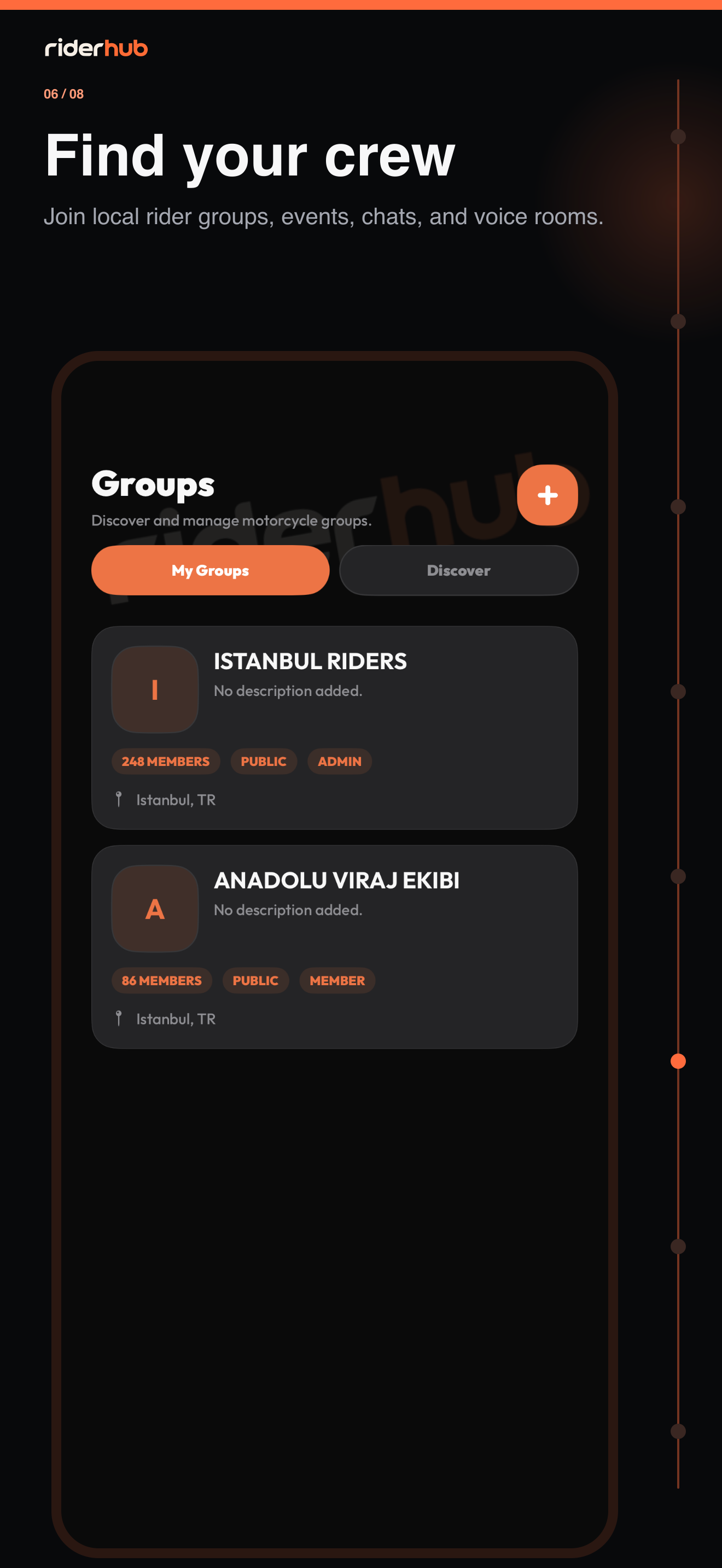
Find and join your community
Groups keeps communities you joined in My Groups and new communities in Discover. Non-members see a limited preview; About, Members, Events, Chat and Voice open only after membership approval.
The member journey step by step
- Open a new community from Discover, or enter a code from the invite-code card.
- Review cover, location, member count and description, then send a join request with a message.
- Track or cancel your pending request from My requests.
- After approval, use About, Members, Events, Chat and Voice.
- Chat starts at the newest messages; scroll upward for older pages while the composer stays reachable.
- Join the group voice room; it is audio-only and never asks for location.
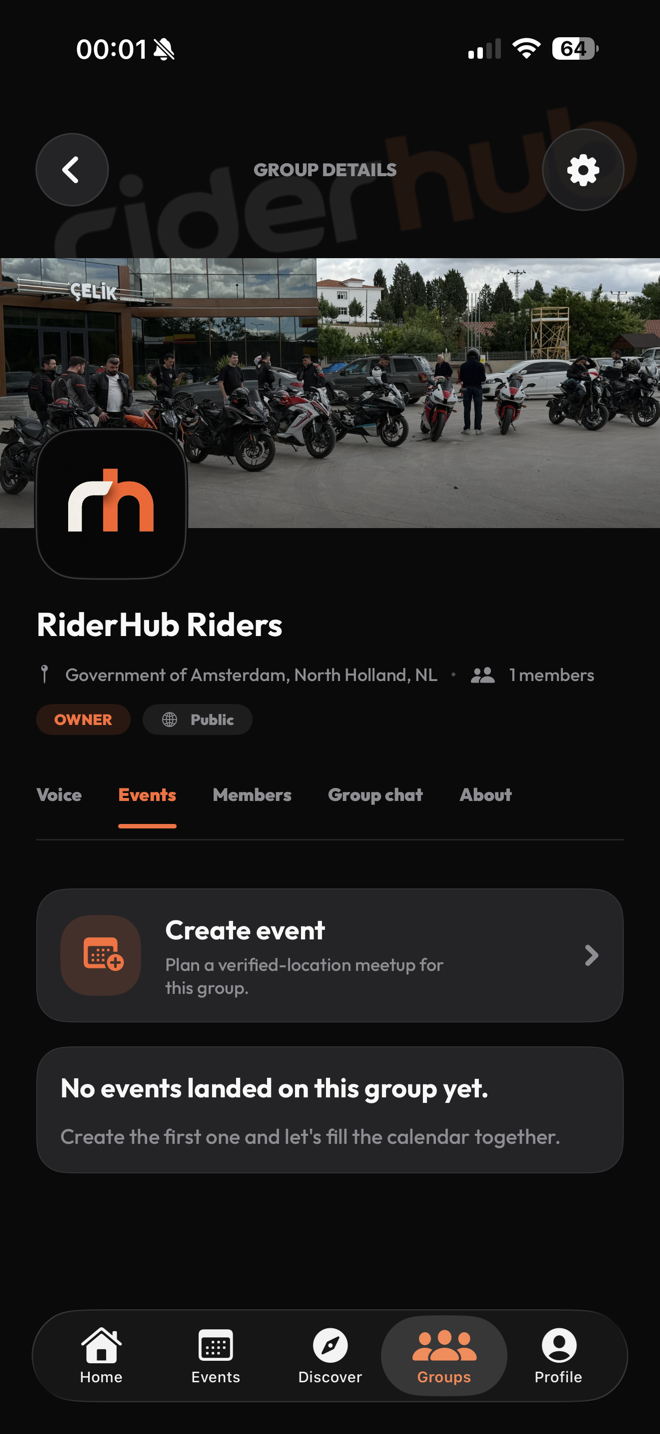
Creation and management
- Create Group remains visible on every plan; Solo and Pro see the Ride Crew upgrade before the form.
- Owners and admins approve requests, copy or share the invite code, and rotate it when needed.
- Owners assign roles and remove members; admins remove a post from the group rather than deleting it globally.
- Statistics cover 7, 30 and 90-day membership, event, post, comment and chat activity.