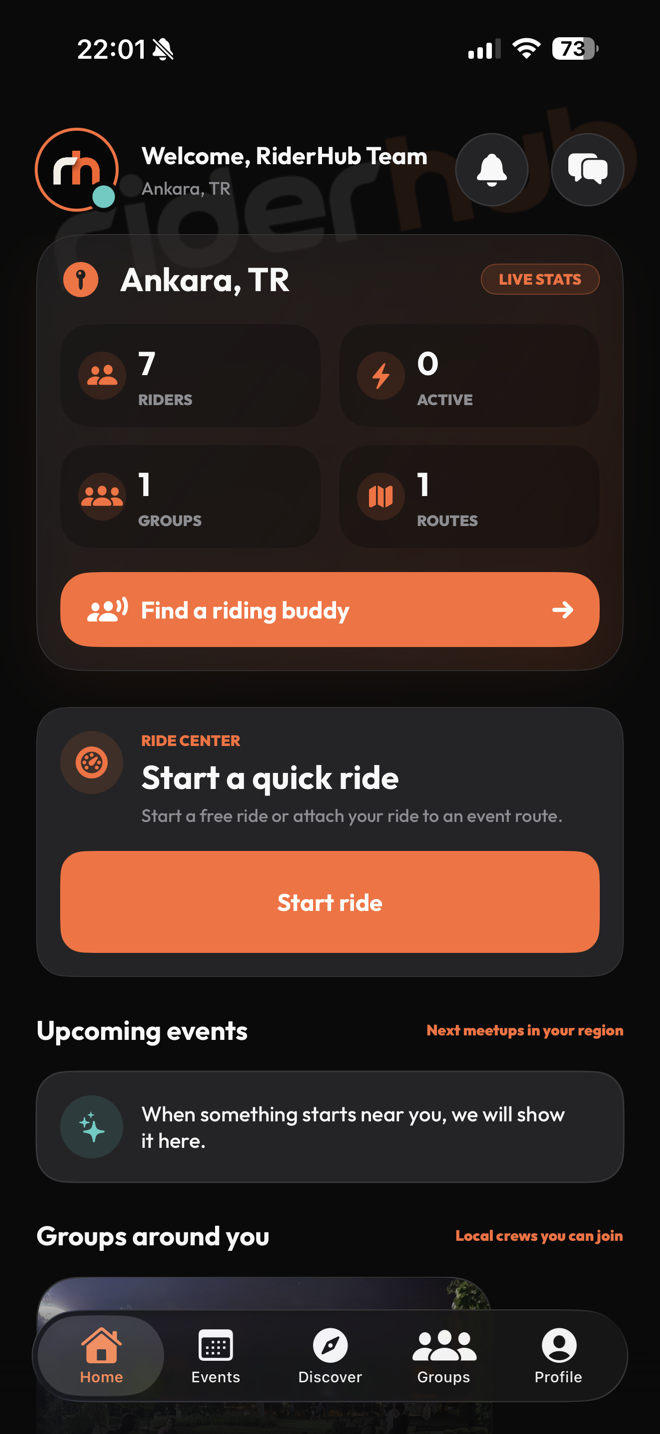
Follow every notification in one inbox
The bell on Home opens the in-app notification inbox. The unread count becomes 99+ above 99; tapping an item marks it read optimistically and opens the related destination.
Manage the notification inbox
- Refresh for new items and synchronize read state across devices.
- Open one notification or use Mark all as read to clear the count.
- Route to a message, friendship, group, event, post, route, voice room, profile, settings or ride destination.
- When the app is closed, let an incoming link wait safely until startup is ready.
- When a chat is foreground and connected in real time, do not expect a duplicate system notification for the same message.
Deep links and safety
- The in-app inbox and system notifications use the same central link resolver.
- The server revalidates the destination against current account permissions; an old notification cannot unlock private content.
- An account-banned notification routes to the safe account-state screen.
- A message preview from a banned sender is hidden from notification surfaces.
- System push works with the inbox when the notification provider is enabled for the deployment environment.